Home / Modules / Payments
Invoice payments
PayPal & Stripe (invoice collection)
A company collects invoice payments into its own PayPal or Stripe account. Both need the Billing / invoicing module.
Two different gateways
| Super Admin → Settings → PayPal / Stripe | Company → Settings → PayPal / Stripe | |
|---|---|---|
| Who is paid | You (the platform) | The company |
| For | SaaS plan / addon checkout | Customer invoice payments |
| PayPal webhook | /webhooks/paypal (Webhook ID required — unsigned events are rejected) | /pay/paypal/webhook (capture is confirmed with PayPal; Webhook ID recommended) |
| Stripe webhook | Optional (Checkout return URL is enough) | /pay/stripe/webhook — session is loaded from Stripe; POST body is not trusted |
| Keys | Your REST / Stripe account | That company’s own keys — not inherited |
PayPal and Stripe are not sidebar items. Super Admin and Company Admin both configure them under Settings.
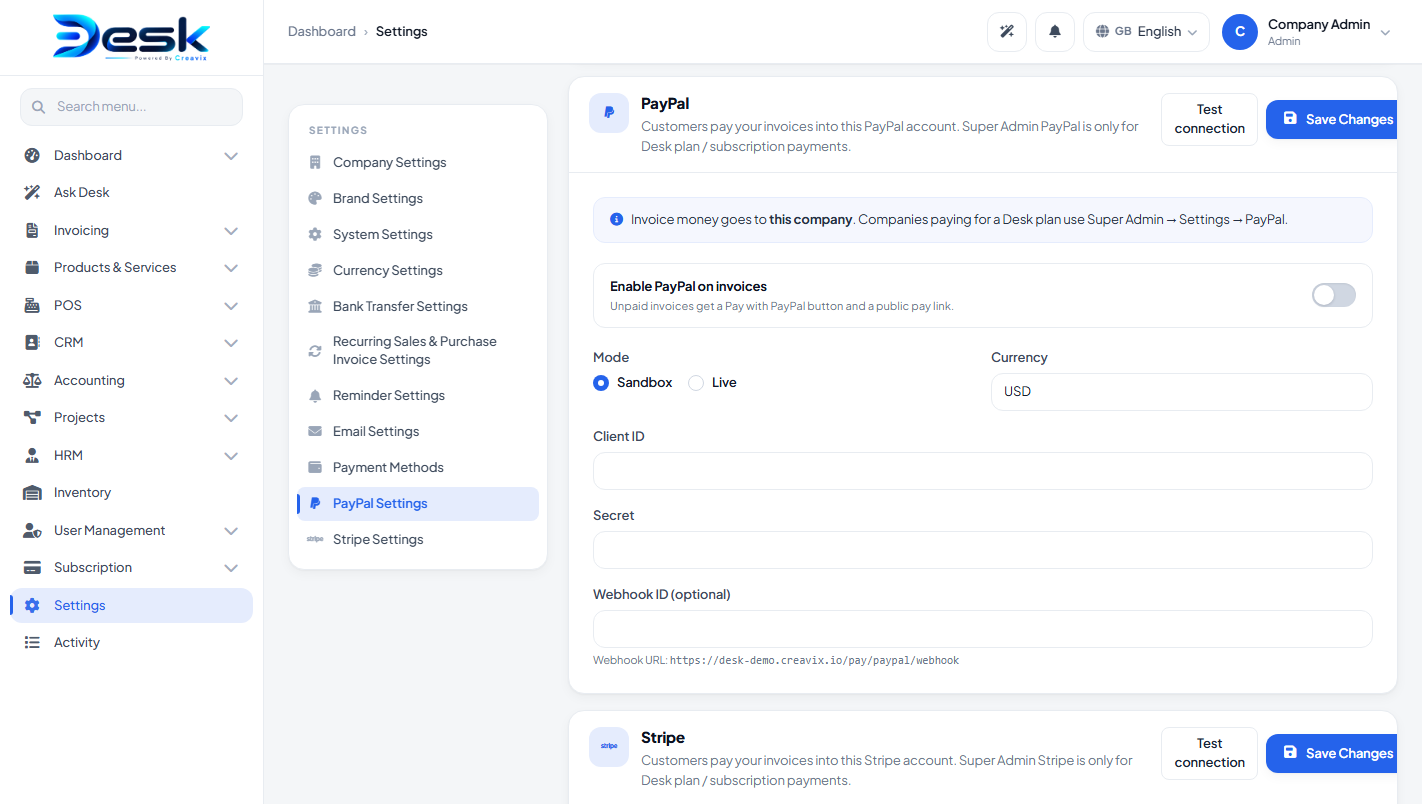
company-paypal.png.Company PayPal
- Add-ons Manager: PayPal Active.
- Plan includes PayPal (and Billing / invoicing).
- Company Admin → Settings → PayPal.
- Enable the gateway. Mode: sandbox or live. Paste Client ID, Secret, optional Webhook ID, currency. Use Test connection.
Create the company PayPal app in your PayPal account. Optional webhook: https://your-domain.com/pay/paypal/webhook.
Company Stripe
- Add-ons Manager: Stripe Active. Plan includes Stripe and Billing / invoicing.
- Company Admin → Settings → Stripe.
- Enable. Mode: sandbox/live. Publishable key, secret key, webhook secret, currency. Test connection.
Optional webhook: https://your-domain.com/pay/stripe/webhook.
How a customer pays an invoice
On an unpaid invoice, Desk shows Pay with PayPal / Pay with Stripe when that gateway is enabled. The same links go on the print page and in the invoice email to the customer. The customer can pay from a public link (no login required).
After a successful payment, the invoice is marked paid and a payment row is stored. You can still record a manual payment under Billing → Payments.
© Creavix Desk